

The short answer
A travel eSIM usually does not show a plan balance in your phone's Settings the way your home contract does, so the practical method is to reset the phone's own data-usage counter when you land and watch that number climb. Your handset counts the megabytes it sends over the eSIM, which is a close-enough gauge of what you have used against your plan. It is a rough figure rather than an exact meter, so treat it as a guide and top up with a comfortable margin rather than waiting for zero.
Why Settings rarely shows a balance
Your phone knows how much data it has moved, but it does not know how big your plan is, so it cannot show a remaining balance. A home contract shows one because your own carrier feeds that figure back to the phone. A travel eSIM runs on a foreign network through a reseller profile, and that live balance is not pushed to your device the same way. The carrier's own balance app or dial codes are built for its direct customers, so they often return nothing useful on a reseller eSIM. That gap is normal, not a fault with your plan.
Use the phone's data-usage counter
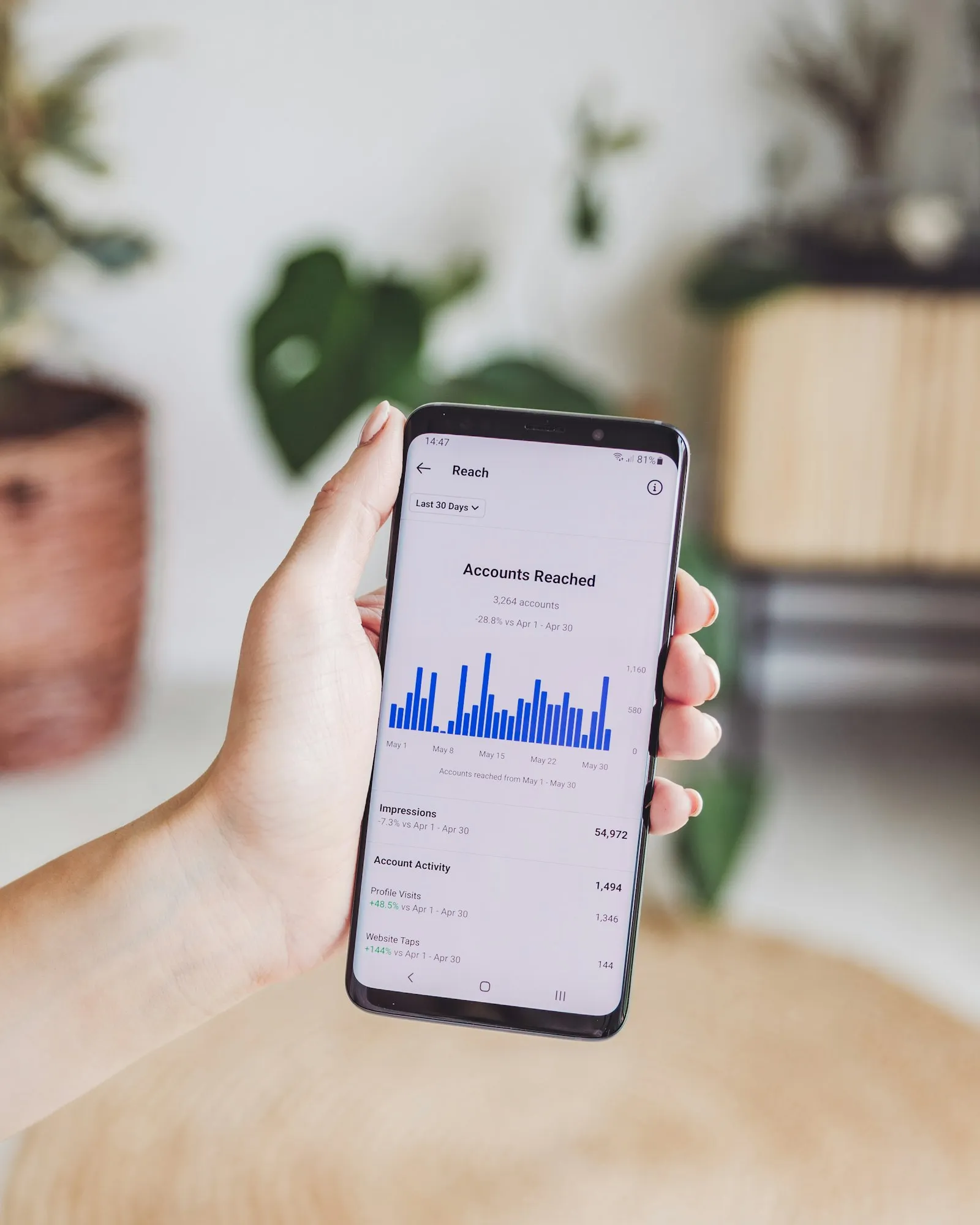
The reliable do-it-yourself method is the built-in usage counter: reset it the moment you land, then check it as your trip goes on. On iPhone, open Settings > Cellular, scroll to the travel line, and note that iOS shows Current Period usage there; the counter resets manually rather than monthly, so reset it on arrival for a clean start. On Android, open Settings > Network and internet > SIMs, pick the eSIM, and set a billing-cycle reset date or clear the usage stats when you land. From then on the number shown is roughly the data you have spent from your plan.
Usage counter is not the same as plan balance
Keep the two ideas separate: the usage counter is how much data your phone has sent, while the plan balance is how much your plan still has left. They move in opposite directions, and they rarely match to the megabyte. Background app refreshes, system updates and cloud backups all add to the counter, and the network measures traffic slightly differently from your handset. So if your plan is 20GB, do not wait for the counter to read exactly 20GB before acting. Treat the counter as an early-warning gauge and give yourself a buffer.
Checking and topping up with Goodbars
For the authoritative figure and to add more data, check your Goodbars order email or contact support rather than relying on the phone alone. Your confirmation email holds your order details and is the right starting point; if you want your current balance confirmed or need to buy more data, email support@goodbars.co with the email address you ordered with and your order number. Top-ups are handled as a paid add-on, so you keep the same eSIM and simply extend what it can do. Support can tell you the exact top-up options for your plan.
Top up before you run out
Do not wait for the connection to stop: arrange a top-up while you still have data and a working link. Once a data-only eSIM is empty it has no way to load a top-up page or reach support, and you are left hunting for Wi-Fi. When the usage counter shows you are near your plan size, sort out more data that evening on hotel Wi-Fi. Turning off background refresh and downloading maps and playlists over Wi-Fi also stretches what you have, so the plan lasts closer to its full size.