

The short answer
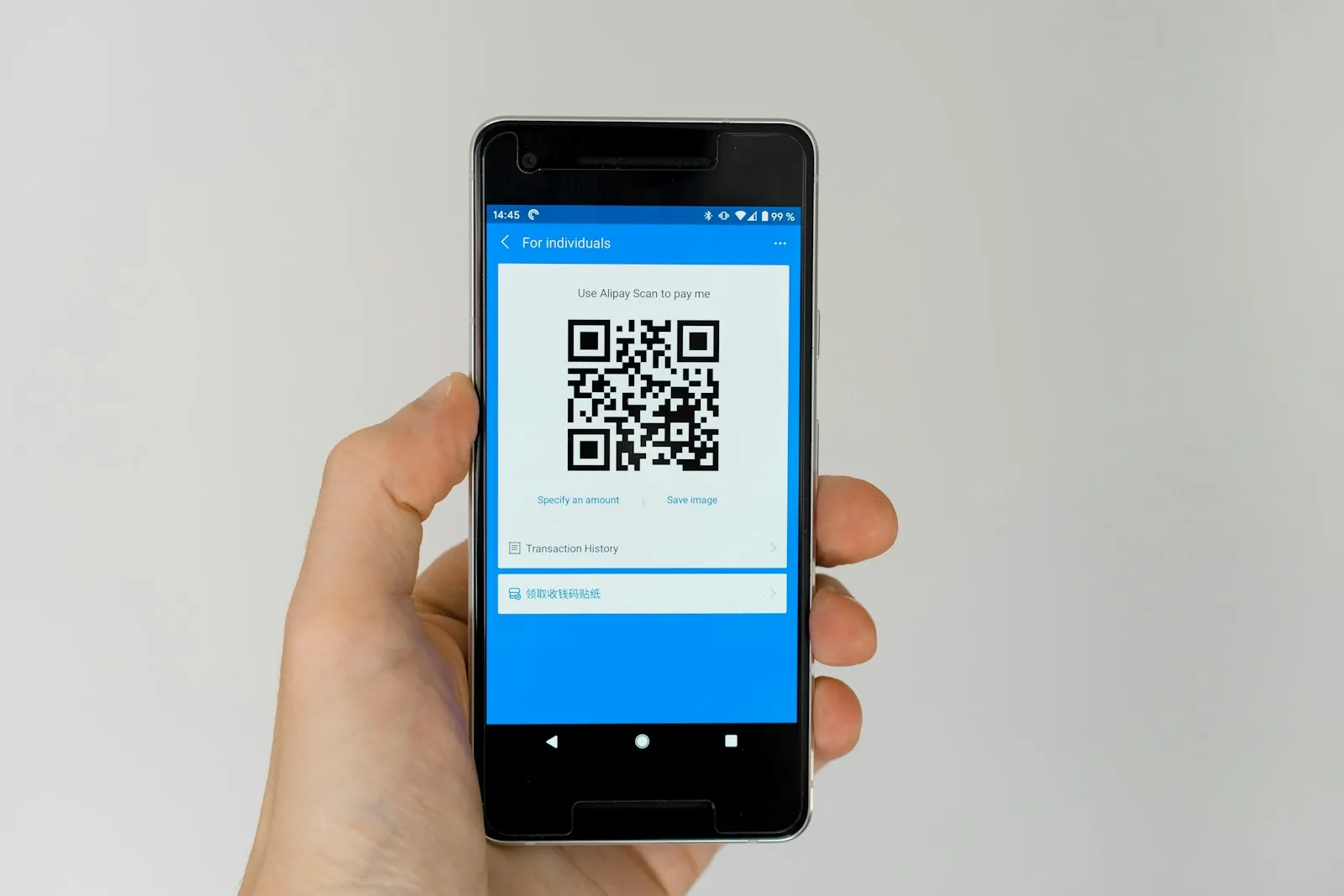
If your QR code will not scan, you have two reliable fixes: raise the brightness on the screen showing the code and wipe your camera lens, or skip scanning and enter the eSIM details by hand. A phone cannot scan a code shown on its own screen, so the QR has to sit on a second device or a printout. The manual path uses the same data the QR encodes, so it installs the identical profile. Work through the steps below and most codes go in within a minute.
Brightness, a clean lens, and the right distance
Most failed scans come down to a dim screen, a smudged lens, or holding the phone too close. Turn the other screen's brightness to full, since auto-brightness often dims it too far for the camera to read. Wipe the rear camera lens, because a fingerprint film scatters enough to defeat the scanner. Then hold the phone steady about 15 to 20 centimetres away so the whole code sits in the frame, and give it a second to focus. A printout beats a screen in bright rooms, as it reflects no glare.
Enter the details manually instead
The manual path is the most reliable fallback, and every Goodbars order email carries both the QR code and these manual details for exactly this reason. On iPhone go to Settings > Cellular > Add eSIM > Use QR Code, then tap Enter Details Manually. On Android open Settings > Network and internet > SIMs > Add eSIM, then choose the enter-manually option. You type two things: the SM-DP+ address (a server web address) into the first field, and the activation code into the second. Some providers combine them into one string starting with LPA:1$; if yours does, paste the whole string into the activation code field. The phone then downloads the profile just as a scan would.
You need Wi-Fi to download the profile
Scanning or typing the code only tells the phone where to fetch the eSIM from; it still has to download the profile over the internet, so you must be on Wi-Fi or working mobile data first. This is the chicken-and-egg that traps people at the airport: the eSIM you are installing is not connected yet, so it cannot download itself. Do the install on home Wi-Fi a day or two before you fly. If you are already abroad, find any free Wi-Fi (a cafe, the airport, your hotel) and the download finishes in seconds. Downloading uses no plan data and does not start your validity period.
One profile per code: do not delete and rescan
Each QR code and each set of manual details installs exactly once, so do not delete a working eSIM and try to scan the same code again. Once the profile is on the phone the code is spent, and rescanning it (or re-entering the same SM-DP+ address) returns an error rather than a fresh copy. The usual trap is tidying up old travel lines and removing the new one by mistake. If that happens the code cannot be reused, and you need a replacement rather than another scan. The safe habit is to install once, label the line, and leave it alone.
When to ask for a replacement
If the manual details also fail, or you deleted an already-installed eSIM, stop retrying and email support@goodbars.co with your order details. Include the email address you ordered with, your order number or the order token from your confirmation email, your phone model, and the exact error text you see. That lets support check whether the profile was already downloaded and issue a new one if needed, in a single reply. Retrying a spent code will not help and can lock the profile, so send those four details and wait for the replacement.